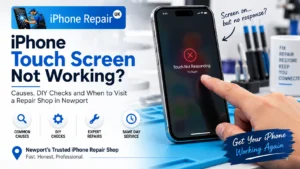
An iPhone that lights up but ignores your finger is one of the strangest fault states a phone can enter. The apps are all there. Notifications keep arriving. Siri still answers. But nothing you tap does anything, and after a while you start to wonder if the whole phone is broken or just the glass.
The answer is almost always the second one, and once you understand the difference between the display glass and the invisible layer underneath it, the fault becomes much easier to diagnose. This guide walks through why an iPhone touch screen stops responding, how to run a proper self-check before you visit a repair shop, and which specific symptoms point to a digitiser fault versus a software glitch, a hardware fault elsewhere, or a genuine Apple service programme you may qualify for.
We fit iPhone digitisers and displays every day at our Newport workshop, and the same three or four fault patterns come through the door every week. If you know what to look for, you can save yourself a trip: some issues genuinely fix themselves with a force restart. The ones that do not are what this guide is really about.
Your iPhone Screen Is Actually Two Layers
This is the single most useful thing to understand before anything else. The rectangle you tap on every day is not one component. It is a stack of two layers laminated together, plus the aluminium or steel frame around them.
Layer one: is the display: This is the OLED or LCD panel that produces the image. It is what you actually see. On modern iPhones (iPhone X onwards, plus the iPhone SE 2nd gen and later have LCD), the display is a Super Retina XDR OLED panel with its own driver chip, backlight controller (on LCD models), and calibration data.
Layer two: is the digitiser: This is a transparent capacitive touch grid bonded on top of the display panel. When you touch the screen, the digitiser detects the tiny change in electrical capacitance your finger produces and sends a coordinate to the phone’s main processor. iOS translates that coordinate into a tap. Every gesture, every swipe, every keystroke passes through the digitiser first.
You never see the digitiser: It is transparent, sits inside the screen assembly, and has no visible markings. But this invisible layer is where the vast majority of “touch not working” faults live.
The consequence: Your iPhone can have a perfect, fully functional display and an entirely broken touch input. The screen shows the image because the display panel is fine. Tapping does nothing because the digitiser has failed. The two layers can fail independently, which is why the phone looks normal but ignores you.
Glass Fault vs Digitiser Fault: The Key Distinction
Every touch screen fault falls into one of two broad categories, and telling them apart is the most important diagnostic step you can take yourself.
Glass fault: The outer glass is cracked or damaged in a way that physically disrupts the digitiser underneath it. Even hairline cracks can sever the fine conductive traces in the touch grid, killing touch response in a specific area. A large impact can pressure-damage the digitiser without cracking the glass at all, producing dead zones with no visible cause. If the glass cracked in a drop and touch stopped working at the same time, this is almost certainly the fault.
Digitiser fault: The digitiser itself has failed, either because a flex cable inside the phone has come loose or torn, the digitiser IC on the logic board has failed, or the digitiser layer has developed an internal fault. On some iPhone models (iPhone X and iPhone 11 specifically), Apple ran official service programmes for known digitiser issues on units within specific serial number ranges. The screen looks completely intact, but touch simply does not work.
The visual difference is obvious in the glass fault case. If your screen is cracked, you have a glass fault. The digitiser fault case is the trickier one because the phone looks fine and there is no visible clue as to what has happened. That is where the diagnostic self-check comes in.
Ghost Touching: A Related But Separate Symptom
Ghost touching is a fault in the same family but with different behaviour. Instead of your taps being ignored, the phone registers taps you did not make. The screen unlocks itself. Apps open on their own. Text types itself into search boxes. Sometimes the phone appears “possessed”, scrolling and tapping without human input.
Ghost touch has three common causes. First, a damaged or degraded digitiser where cracked or shorted traces produce phantom coordinates that iOS reads as real touches. Second, electrical interference from a cheap charger — many low-cost third-party chargers do a poor job of filtering electrical noise, and that noise can propagate into the digitiser and cause phantom touches, with the fault appearing only when the phone is charging. If you experience ghost touch that stops the moment you unplug, the charger is the cause. The risks of cheap third-party chargers go well beyond ghost touch, but this is one of the most common symptoms we see. Third, a recently fitted aftermarket screen where the digitiser has not been calibrated correctly or the panel and digitiser are not properly matched — ghost touch after a screen repair is a warning sign that the repair itself was rushed.
A damaged or degraded digitiser where cracked or shorted traces produce phantom coordinates that iOS reads as real touches.
Electrical interference from a cheap charger. Many low-cost third-party chargers do a poor job of filtering electrical noise, and that noise can propagate into the digitiser and cause phantom touches. The fault appears only when the phone is charging. If you experience ghost touch that stops the moment you unplug, the charger is the cause. The risks of cheap third-party chargers go well beyond ghost touch, but this is one of the most common symptoms we see.
A recently fitted aftermarket screen where the digitiser has not been calibrated correctly, or where the panel and digitiser are not properly matched. Ghost touch after a screen repair is a warning sign that the repair itself was rushed.
Ghost touch is disruptive but usually fixable, and the fix depends on which of these three causes applies.
The 7-Step DIY Self-Check
Before you book a repair, run through these seven checks in order. Any one of them can catch an issue that turns out not to need a workshop visit at all.
Step 1: Clean the Screen and Your Hands
Capacitive touch relies on the natural electrical properties of your skin. Anything that changes those properties can degrade or disable touch response. Dry hands, damp hands, greasy hands, hands with hand cream residue, and screens with fingerprint oil or moisture all cause intermittent touch problems. Wipe the screen down with a dry microfibre cloth. Dry your hands. Try again.
Step 2: Remove Any Screen Protector or Case
A cheap screen protector, particularly one that has developed a bubble or has lifted at the edges, can significantly reduce touch sensitivity. Take it off and test. Cases that press too tightly on the display can also cause ghost touches around the edges of the screen.
Step 3: Force Restart the Phone
A software glitch can freeze iOS to the point where the touch controller stops responding, and a force restart is the only way to break out. On iPhone 8 and later (including all Face ID iPhones), press and quickly release the volume up button, press and quickly release the volume down button, then press and hold the side button until you see the Apple logo. On iPhone 7 and 7 Plus, hold the volume down and side buttons together. On iPhone 6s and earlier including the iPhone SE 1st gen, hold the home and side buttons together. Do not release when you see the shutdown slider; keep holding until the Apple logo appears.
Step 4: Unplug Any Lightning or USB-C Accessory
If the phone is currently plugged into a charger, cable, headphone adaptor, or CarPlay dongle, unplug everything. Test touch with nothing attached. If touch returns, the accessory or charger was the cause, and you should replace the cable or charger with a genuine Apple or MFi-certified one.
Step 5: The Siri Test (Definitive Diagnostic)
This is the most important step. Trigger Siri, either with “Hey Siri” or by holding the side button. Ask Siri to open Settings, or open the Messages app, or send a message to a contact. If Siri responds normally and can open apps and perform actions, the phone’s main processor, memory, storage, and battery are all working correctly. The fault is isolated to the touch input path. If Siri also fails, you have a broader hardware problem that is not just the touch screen.
Step 6: Test Different Areas of the Screen
Open the Notes app (Siri can open it for you if touch is completely dead). Try to tap all four corners of the screen, the four edges, and the centre. A digitiser fault is often local: touch may work in the top half of the screen but not the bottom, or work everywhere except a specific band across the middle. Mapping the dead zones tells the technician exactly what has failed.
Step 7: Test in Recovery Mode
If touch works on the home screen but not in one specific app, the app is at fault. If touch works nowhere in iOS, put the phone into Recovery Mode by connecting it to a computer and following Apple’s instructions. If touch fails in Recovery Mode too, the fault is definitely hardware. If touch works in Recovery Mode, the fault is a software or iOS issue and a Recovery Mode restore may fix it, though this deletes all data.
Diagnosing By How the Fault Started
The pattern of failure often points directly at the cause.
After a Drop
If touch failed immediately or within minutes of dropping the phone, you have physical damage. The glass may or may not be cracked. Even without visible cracks, impact can dislodge the digitiser flex cable inside the phone or crack the digitiser layer under the glass. Do not press hard on the screen trying to “test” whether touch works: this can worsen a hairline crack.
After Water Damage
Water is one of the most common causes of digitiser failure. Even short exposure to water, sweat, or condensation can cause corrosion on the fine connections between the digitiser and the logic board. Symptoms include partial dead zones, ghost touches, or complete failure. If your iPhone has been exposed to water, the immediate steps if your iPhone has been in water matter enormously and are time-sensitive.
After an iOS Update
An update can occasionally cause touch issues, particularly on older devices. This is nearly always fixable with a force restart followed by an update to the latest available iOS version, or in severe cases a full Recovery Mode restore. If the fault persists after both, it is almost certainly hardware coincidence rather than the update itself.
After a Previous Repair
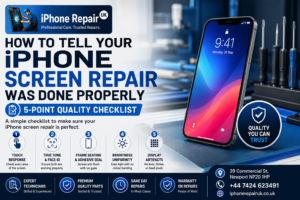
If your iPhone was repaired recently (particularly at a high-street shop with variable technician quality) and touch has started failing, the repair itself is the most likely cause. A poorly-seated digitiser flex cable, a damaged connector, or a low-quality replacement panel can all produce touch failures days or weeks after the visible repair looked fine. The 5-point post-repair inspection checklist is worth running against the phone before you go back to the original shop. It gives you specific tests to confirm what has failed and provides clear evidence for a warranty claim.
After No Obvious Cause
Touch failing with no visible trigger is unusual but does happen. Manufacturing defects in the digitiser can produce delayed failures months or years after purchase. If you have an iPhone X or iPhone 11 with sudden touch issues, check Apple’s Repair Programmes on their support site. Both models had known digitiser issues covered by extended warranty on serial numbers within specific ranges, though these programmes eventually expire. If your device qualifies, Apple will fix it at no charge even outside standard warranty.
Known Model-Specific Touch Issues
Some iPhone models have well-documented touch faults worth being aware of.
iPhone X: Apple ran a Display Module Replacement Program for iPhone X units affected by touch issues, including screens not responding correctly to touch or responding when not being touched through ghost touch. The programme covered qualifying serial numbers.
iPhone 11: Apple ran a Display Module Replacement Program for iPhone 11 units with touch issues due to a manufacturing defect in the display module. Qualifying units received free repair through Apple.
iPhone 6 Plus and to a lesser extent iPhone 6: The well-known touch disease affected iPhone 6 Plus units after prolonged use. The fault caused a grey flickering bar at the top of the screen and progressive loss of touch sensitivity. It was caused by physical stress on the touch IC solder joints on the logic board and required microsoldering repair rather than a digitiser swap.
If you have any of these models with symptoms matching the descriptions above, the fault may be more specific than a general digitiser failure, and it is worth having a specialist assess it before assuming a screen replacement is the answer.
Software vs Hardware: Definitive Signs
The Siri test in Step 5 is the fastest way to separate software from hardware, but here are the more nuanced clues.
Software fault signs:
Touch works, but only in some apps.
The problem started after an iOS update.
Force restart temporarily fixes it.
The problem comes and goes with no physical trigger.
Touch works in Recovery Mode.
Multiple different symptoms appear (touch, camera, Wi-Fi) all at once.
Hardware fault signs:
Touch fails consistently in every app.
The fault appeared after a drop, water exposure, or heat exposure.
The fault appeared after a previous repair.
Force restart makes no difference.
The screen is cracked (obvious or hairline).
Touch fails only in specific regions of the display.
Ghost touches appear even with no charger connected.
Touch fails in Recovery Mode.
When both software and hardware signs are present, hardware wins as the diagnosis. Software problems rarely produce region-specific failures.
What a Professional iPhone Touch Screen Repair Involves
If the self-check confirms a hardware fault, the repair itself is a screen assembly replacement. Modern iPhones do not allow the digitiser to be swapped in isolation; the digitiser is laminated to the display panel and both are replaced together. A proper Apple-specialist repair covers:
1. Full diagnostic confirming the fault is the digitiser or panel rather than the logic board or a connector.
2. Battery disconnection as the first physical step, preventing short circuits or damage to sensitive components.
3. Careful removal of the old panel, preserving the Face ID or Touch ID module for transfer.
4. Transfer of the TrueDepth camera assembly (on Face ID iPhones) or the home button and Touch ID assembly (on older models).
5. True Tone data transfer using the correct programmer, so the new panel retains factory-matched colour behaviour.
6. New adhesive gaskets for water resistance where the model supports it.
7. Post-repair testing across the whole surface of the new display, including all four corners, both edges, and the multi-touch response.
8. Parts and Service History initialisation on iPhone 15 and later so the repair is logged correctly in Settings.
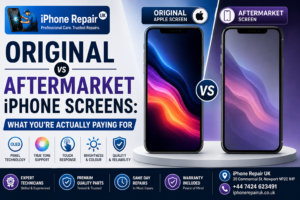
Quality of panel matters as much as quality of workmanship. A comparison of how original and aftermarket iPhone screens compare walks through soft OLED, hard OLED, and LCD aftermarket options, explaining why panel choice affects touch performance and long-term reliability. For anyone whose screen is cracked and who wants to understand the immediate steps before booking, what to do first if your screen is cracked covers the first-hour priorities.
Booking a Same-Day Touch Screen Repair in Newport
iPhone Repair UK is an Apple-only workshop at 39 Commercial Street in Newport, a short walk from Friars Walk, John Frost Square, and Newport train station. We serve customers from Newport, Cwmbran, Pontypool, Caerleon, Risca, and across South Wales. Because we work exclusively on Apple hardware, our technicians fit multiple iPhone screen assemblies each week and have the specialist calibration equipment for True Tone programming, Face ID module transfers, and post-repair verification that a general repair shop typically lacks.
Every repair starts with a free diagnostic. If the fault is genuinely the digitiser or display, we quote a fixed price up front, offer both original and quality aftermarket panel options, and explain the trade-offs honestly. If the fault turns out to be software, a loose connector, or something else entirely, we tell you and quote accordingly. Payment is on completion. Nothing is charged until the phone works properly. To book a professional iPhone touch screen repair, call 01633 549755, WhatsApp 07424 623491, or drop into our workshop at 39 Commercial Street, Newport, NP20 1HP. We are open Monday to Saturday 9am to 6pm, and Sunday 11am to 4pm. You can also book a same-day touch screen diagnostic online through the contact page if you want to check availability first.
Frequently Asked Questions
Why Is My iPhone Screen Not Responding to Touch?
The three most common causes are a physically damaged digitiser (from a drop, water, or pressure), a software glitch requiring a force restart, and interference from a cheap third-party charger. The Siri test tells you fast: if Siri responds normally, the phone itself is fine and the fault is isolated to the touch layer.
Can I Fix an iPhone Touch Screen at Home?
For software causes, yes: a force restart, an iOS update, or a Recovery Mode restore can resolve the fault. For hardware causes (damaged digitiser, torn flex cable, water damage), the repair requires opening the device with specialist tools and is not a DIY job on modern iPhones. Attempting a DIY panel swap on any Face ID iPhone risks permanently disabling Face ID.
iPhone Touch Screen Stopped Working After a Drop, What Should I Do?
Do not press hard on the screen trying to test it, as this can worsen any hairline cracks. Run the Siri test to confirm the phone itself is working, then book a professional diagnostic. The fault is almost certainly the digitiser or a dislodged internal flex cable, and a screen assembly replacement will resolve it.
iPhone Screen Unresponsive After Water Damage, Is It Repairable?
Usually yes, but time matters. Water causes corrosion between the digitiser and the logic board, and the longer the moisture remains, the harder the repair. Do not attempt to charge the phone. Turn it off if you can, and get it to a specialist urgently. Recovery is far more likely if the phone reaches the workshop within 24 hours.
How Much Does an iPhone Touch Screen Repair Cost in Newport?
Cost depends on the model and the panel choice (original versus aftermarket). Modern iPhones range from around £50 for older LCD models to £250 or more for the latest Pro Max panels. Every repair starts with a free diagnostic and a fixed quote before any work begins, so you never pay for a repair without knowing the price first.
What Causes iPhone Ghost Touch?
Three main causes: a damaged or degraded digitiser producing phantom coordinates, electrical interference from a cheap charger, and a poorly-installed aftermarket screen. If ghost touch stops when you unplug the charger, the charger is the cause. If it happens all the time, the digitiser needs assessment or replacement.
Can Apple’s Touch Screen Repair Programmes Still Cover My iPhone?
Apple’s Display Module Replacement Programs for iPhone X and iPhone 11 covered units within specific serial number ranges. These programmes eventually expire, but if you have one of those models with matching symptoms, it is worth checking Apple’s support site to see whether your device still qualifies. If it does, Apple will replace the display at no charge.